Import Orders
Take a photo of your order receipt or upload a PDF — AI reads it and creates your inventory automatically. No manual data entry.
Upload your receipt
Tap Upload order to take a photo of your receipt, or pick a PDF from your library. You can also forward order confirmations by email.
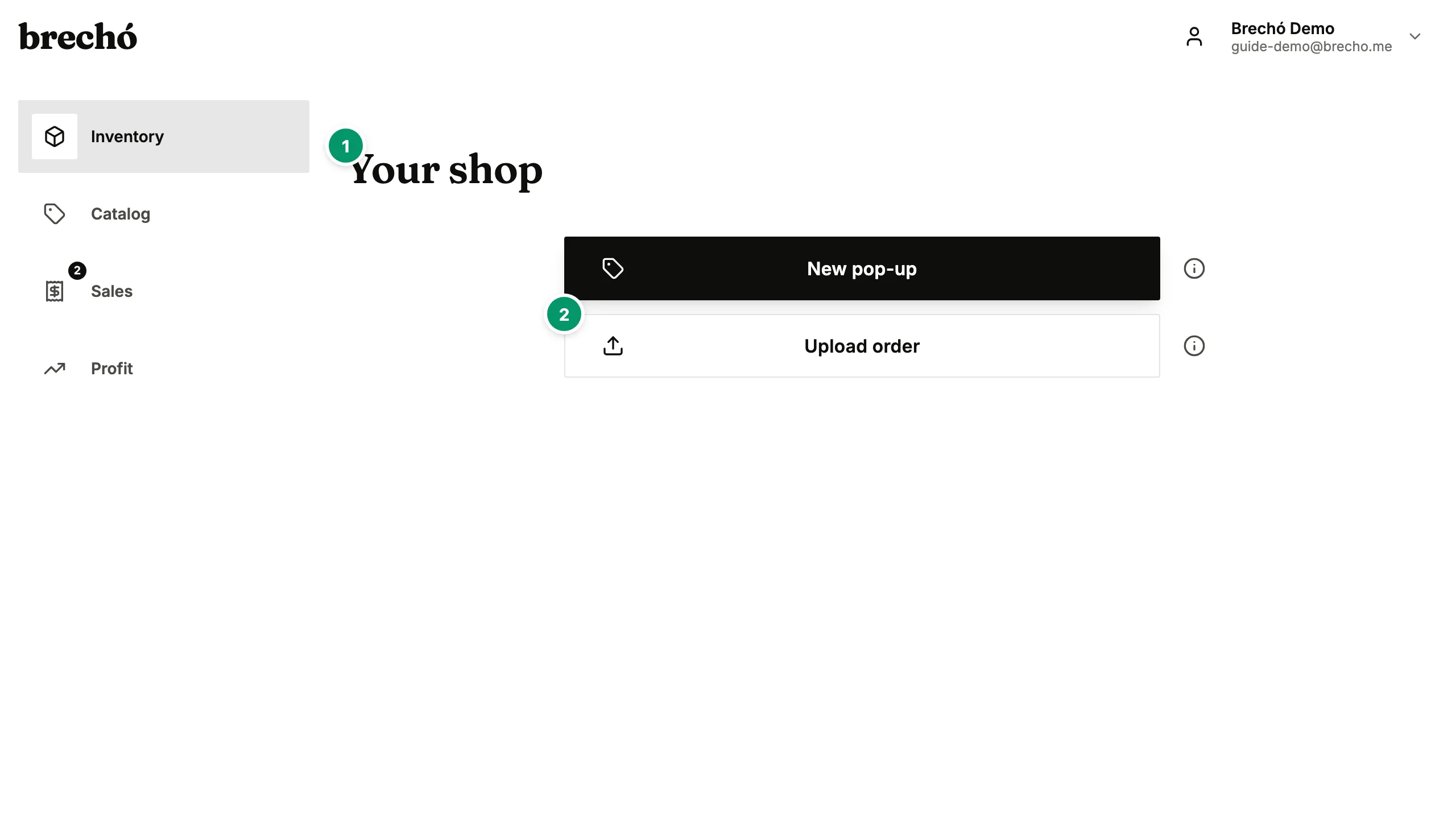
- 1 Upload your receipt
- 2 AI parses your order
AI parses your order
Our AI reads your receipt and extracts supplier name, item descriptions, quantities, and costs. Processing takes a few seconds.
Review and confirm
Check the parsed data, make any corrections, and confirm. Your items are added to inventory with costs already tracked.
Pro tip: Yes — you can upload multiple files or use batch capture to process several orders in one session.
Frequently Asked Questions
What file formats are supported?
Photos (JPG, PNG, HEIC) and PDF files. You can also forward order confirmation emails directly to your capture inbox.
How accurate is the AI parsing?
The AI handles most receipt formats well, including Chinese supplier invoices. You can always review and correct the parsed data before confirming.
Can I import multiple orders at once?
Yes — you can upload multiple files or use batch capture to process several orders in one session.
Can I forward order confirmation emails for automatic capture?
Yes. Your account includes a unique capture email address in Settings → Capture. Forward any order confirmation — from AliExpress, Shein, Temu, or any supplier — to that address and AI processes it in the background. Items appear in your pending captures without you opening the app. This is the fastest way to import orders received by email or forwarded via WhatsApp.
What should I do if the AI gets something wrong on my receipt?
Review mode lets you edit every field before saving. Tap any item to correct the name, quantity, price, or description. You can split a combined item into separate variants, merge duplicates, or add items the AI missed entirely. Nothing is saved until you confirm the full order — all changes are final only when you tap Save.
Can I import receipts from multiple suppliers in the same capture session?
Yes. In a single capture session you can upload receipts from different suppliers — mix AliExpress screenshots, Chinese-language invoices, Shein confirmation emails, and handwritten market receipts. Each file is parsed separately with its own item list and supplier linked. Batch capture is especially useful when processing a week of purchases at once. All pending captures appear in a queue for you to review and confirm one by one before anything enters your secondhand inventory.
Can I capture order receipts from Shopee or TikTok Shop suppliers?
Yes. The AI reads order confirmations and receipts from Shopee, TikTok Shop, AliExpress, Shein, Temu, Alibaba, and any other supplier platform. Upload a screenshot of the order page or forward the confirmation email — item names, quantities, unit costs, and shipping are extracted automatically regardless of which platform the receipt came from. Chinese-language, English, and Portuguese invoices all work. You review and confirm before anything enters your inventory.
Can I import orders I receive via WhatsApp or a forwarded email?
Yes. Your account has a unique capture inbox address in Settings → Capture. Forward any order confirmation — AliExpress emails, Temu screenshots saved to your camera roll, or supplier PDFs sent via WhatsApp — to that address and AI processes them automatically in the background. Items appear in your pending captures queue for you to review and confirm. For WhatsApp images, save the receipt screenshot to your camera roll and upload it directly from the Capture page. AI extracts items from long email threads, scanned invoices, and multi-page PDFs the same way it does from a single screenshot.
What's the best way to photograph a receipt to maximize AI accuracy?
Use natural light or steady indoor lighting, lay the receipt flat on a plain surface, and capture the complete document in frame without cropping any edges. Shoot from directly above rather than at an angle. For long paper receipts, fold them or take multiple overlapping photos — the AI can process multi-image captures. Screenshots from your phone or computer work better than photos of a screen for digital orders. For AliExpress or Shein orders, use a full-page screenshot rather than a photo of a screen. Chinese-language supplier invoices work with the same approach — no translation needed before uploading.
Can I add existing inventory I already have in stock, before I start using AI receipt capture for new orders?
Yes. Add existing stock the same way you add anything else: photograph or screenshot each piece the way you would a new receipt, or, if you have no receipt for it, tap 'Add item' during review to enter the name, quantity, and price you paid by hand. Historical items added this way keep the cost and status you enter; new orders captured by AI automatically add landed cost allocation and supplier attribution on top. You can mix both approaches freely within the same account.
Can brecho.me parse Chinese invoice PDFs and multi-page supplier documents?
Yes. The AI handles multi-page PDFs, scanned documents, and Chinese-character invoices from Alibaba, Taobao, and direct factory suppliers. Upload a PDF directly from the Capture page — all pages are processed together as a single order. For Chinese-language multi-page factory invoices, the AI reads characters from every page and builds one item list for your review. Most supplier invoices cover all items on the first two or three pages; for very long documents, upload only those pages. Email capture also accepts PDF attachments — forward a supplier email with a PDF attached and both the email body and the attachment are parsed together. The same workflow handles mixed-language documents where Chinese item names appear alongside English totals or order numbers.
Can I capture orders placed on Shopee Brasil, Mercado Livre, or other Brazilian marketplaces?
Yes. brecho.me AI capture handles order confirmation screenshots and emails from Brazilian marketplaces — Shopee Brasil, Mercado Livre, Enjoei, and others. Upload a screenshot of the order confirmation page or forward the order email to your capture address. The AI reads item names, quantities, unit prices, and shipping costs and creates a purchase record in your inventory. For marketplace purchases with multiple items in one order, all items are extracted together and linked to one purchase entry. This is especially useful for sellers who buy inventory from other secondhand sellers on Enjoei or Mercado Livre — each purchase becomes a trackable cost basis in your profit calculations.
Can I forward a supplier's WhatsApp voice message or chat thread into my inventory?
Not directly — AI capture works from images, screenshots, and PDF files, not audio. For a WhatsApp order discussed in a chat thread, take a screenshot of the conversation showing item names, quantities, and prices and upload it from the Capture page. The AI reads text in screenshots the same as a formal invoice. For voice orders, write a quick note with the item details — name, quantity, price — paste it into a chat message, screenshot that, and upload. The whole process takes less than a minute. For WhatsApp PDF invoices a supplier sends as an attachment, download the PDF from the chat and upload it directly — multi-page supplier PDFs are fully supported.
How does brecho.me handle receipts priced in Chinese yuan (CNY) — what exchange rate is applied to convert to BRL or EUR?
When the AI reads a Chinese supplier invoice or AliExpress order priced in CNY, brecho.me records the original prices and lets you set the exchange rate in the review step before confirming the order. Enter the rate you actually paid — the rate your bank, remittance service, or payment platform applied at the time of purchase, for example 1 CNY = R$0.79 or €0.13. brecho.me multiplies every item's yuan price by that rate to calculate purchase cost in your display currency. Combined with the shipping allocation and import duty, this gives each item a true landed cost in BRL or EUR before you set a sale price. The exchange rate you enter is stored permanently as part of the cost record. For sellers buying from China regularly, exchange rate accuracy matters: a 10% rate shift on a large batch can be the difference between a profitable purchase and a break-even one.
Can brecho.me read supplier invoices in non-Latin scripts — for example, Turkish, Korean, or Arabic — the same way it reads Chinese?
Yes. The AI capture handles a wide range of scripts and languages beyond the most common three. Turkish, Korean, Arabic, and other non-Latin receipts are processed the same way as Chinese-character invoices — upload the image or PDF from the Capture page and the AI extracts item names, quantities, prices, and units. For right-to-left scripts such as Arabic and Hebrew, AI capture reads the invoice correctly when the document is uploaded as a clear, flat, unrotated photo. Results are best when the receipt is well-lit, not handwritten, and shows clear price columns. For very unusual supplier formats or scripts with non-standard numeral systems, review the capture output carefully before confirming — tap any field to correct names, quantities, or prices. The review-before-confirm step protects you regardless of the invoice language.
Ready to try it?
Start managing your secondhand shop today. No credit card required.