Product Catalog
Browse your inventory in a visual grid, just like your customers see it. See which items are ready to sell and which need attention.
Visual catalog view
Products are displayed as cards with photos, names, and prices. This is how your catalog looks — clean and shoppable.
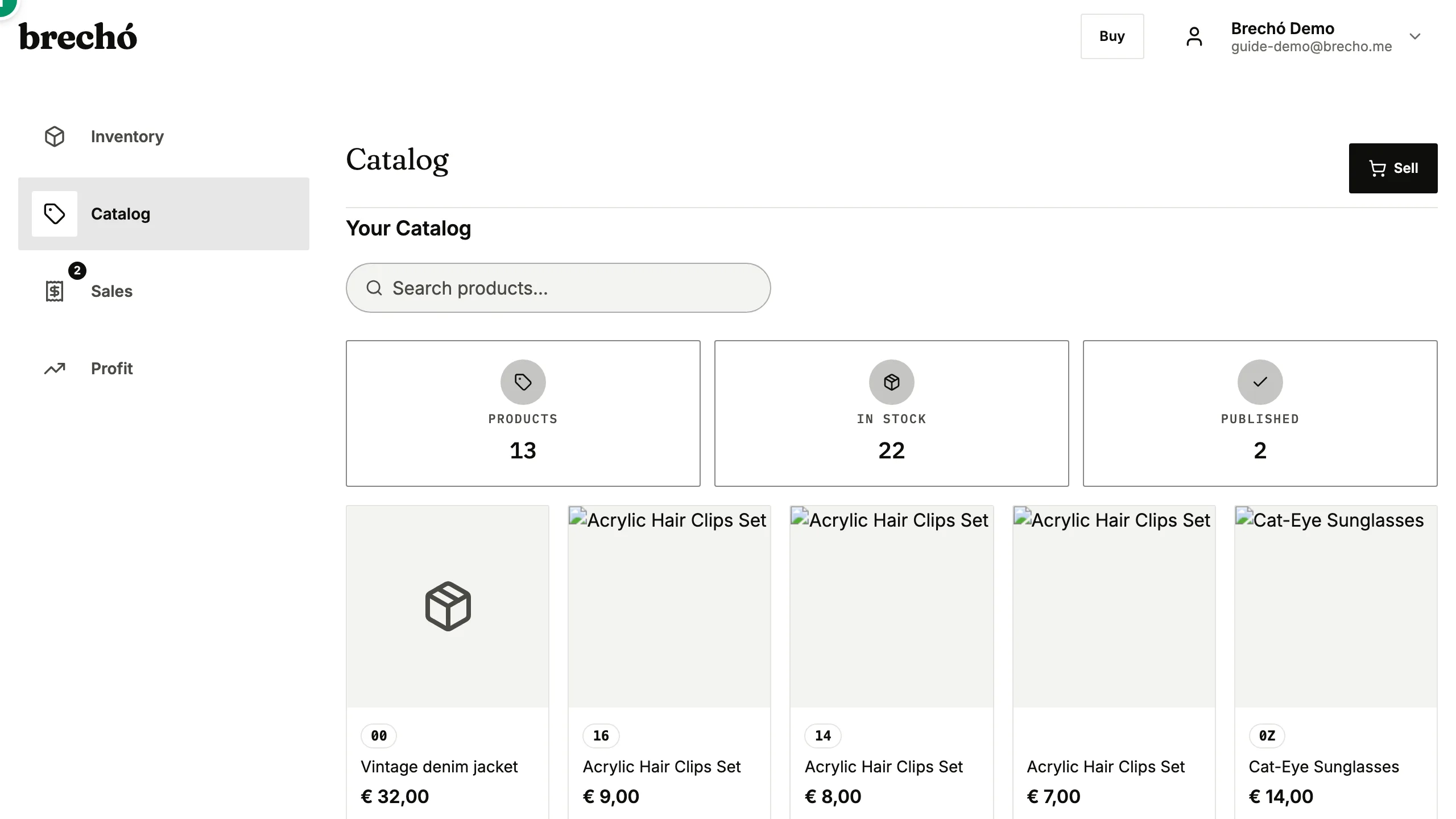
- 1 Visual catalog view
Manage listings
From the catalog, you can quickly access any item to update its photos, description, or price.
Frequently Asked Questions
What's the difference between Inventory and Products?
Inventory shows items grouped by order (purchase batches), focused on cost tracking. Products shows a flat catalog view focused on what's available to sell.
Can I quickly add a secondhand item to a marketplace listing from the catalog?
Yes. From the product catalog, tap any item to open it and create or update its marketplace listing — add photos, write a description, set a price, and publish in one flow. Changes sync back to inventory automatically.
Can I add product photos from my phone for marketplace listings?
Yes. Upload photos directly from your phone's camera or gallery on any product detail page. preloved.supply accepts JPG, PNG, and HEIC formats and compresses images automatically. Add multiple photos per item — front, back, close-up, and label shots all help buyers on the marketplace. Use the AI description generator to create a compelling product description from your photos with one tap.
Can I filter or sort my product catalog to find specific items quickly?
Yes. Use the search bar at the top of the product catalog to find items by name, brand, or keyword — results update instantly as you type. Filter by publication status to view only published, unpublished, or sold items. Sort by price, upload date, or alphabetically to organize your view. These filters help you spot products needing attention — missing photos, no price set — before a selling push. The catalog view matches exactly what buyers see on your public marketplace page.
How does the AI description generator help me write secondhand marketplace listings?
Open any item in your product catalog, tap Generate Description, and upload up to four photos — front, back, close-up detail, and label if available. The AI analyzes each photo and writes a detailed product description covering garment type, apparent material, visible details, and an honest condition note based on what it sees. The generated draft appears immediately in the description field — edit, shorten, or expand before saving. AI descriptions cover the specific details buyers search for, like fabric and measurements.
Can I use the product catalog to find items missing photos or a price?
Yes. The product catalog shows visual cards for all your items — items without a photo display a placeholder, making gaps easy to spot at a glance. Use the status filter to view only unpublished items, which typically include pieces missing a photo or price before they can go live. Tap any card to add photos, set a price, and publish. Completing photos and keyword-rich descriptions for all items improves ranking in preloved.supply marketplace search results and increases buyer confidence.
How do I delist an item when it sells in my physical shop?
When you sell an item in person using preloved.supply's POS checkout, the system marks it as sold and removes it from active marketplace listings automatically in real time. If you sold it by cash outside preloved.supply, open the item from your inventory or product catalog and set its status to Sold manually — the marketplace listing is removed immediately. Keeping your marketplace storefront current prevents buyers from attempting to purchase pieces that are no longer available.
How do I check the total value of my unsold inventory?
Go to Inventory and filter by In Stock status. The total cost shown across all filtered items is your current inventory investment at landed cost — what you paid for everything still waiting to sell, including allocated shipping and fees. For a total at sale price (expected revenue if everything sells), check the sum of sale prices across the same filtered list. This value-of-unsold calculation helps you understand how much capital is tied up in stock and when a clearance push or markdown strategy might free up cash for new purchases.
How do I write an effective secondhand item title that attracts buyers on the marketplace?
A strong marketplace title follows a predictable format: Brand + Type + Key Feature + Condition. For example: "Nike Air Max 90 Running Sneakers — Used, Good" or "Vintage Levi's 501 Denim Jeans — Straight Cut, 32x34". Include the brand, garment type, any notable feature (color, pattern, size if relevant), and the condition word buyers search for. Avoid vague titles like "Blue Jeans" or "Nice Top". Titles with specific details rank better in preloved.supply search and match more buyer keyword searches. The AI description generator creates a detailed draft from your photos — use it as a starting point and refine the title with keywords that fit your specific buyer search intent.
Can I unpublish or archive products from my catalog in bulk without deleting them?
Yes. In your product catalog, select multiple items using the batch selection checkbox and use the batch actions menu to unpublish them. Unpublished items remain in your inventory and catalog — they are not deleted or removed from cost and profit history, just taken off active marketplace listings. This is useful for seasonal pieces you plan to relist, items pending new photos, or stock you want to clear from the marketplace without losing purchase records. To relist, select the items again and tap Publish — listings go live immediately. Batch unpublish is the fastest way to reset your marketplace page before a fresh selling push with new arrivals.
How many photos should I add to each secondhand listing to maximize buyer trust and search ranking?
Aim for at least four photos per listing: front view, back view, a close-up of any key detail or label, and a shot of any visible wear or flaw. Listings with four or more photos rank higher in preloved.supply search results because they signal a confident, trustworthy seller. For garments, include a flat-lay view and a hung or worn shot if possible — buyers want to see how the piece falls. For branded items, photograph the label clearly so buyers can verify authenticity. The photo of any flaw should be honest and close-up — buyers trust sellers who disclose imperfections upfront, and accurate condition photos prevent disputes and returns. High-resolution shots in natural daylight on a plain background produce the best images with no special equipment needed.
Can I add size, measurements, or fit details to a listing so buyers know how it will fit?
Yes. Each product listing has dedicated fields for size label (S, M, L, 38, 40, UK10, etc.), actual measurements (chest, waist, hips, length in centimetres), and fit notes. Adding measurements reduces buyer hesitation significantly for secondhand items where brand sizing varies. Buyers searching by size on the marketplace see only listings with matching size labels — completing the size field affects both search visibility and conversion. For vintage items where the original size label is missing, enter the measurements and write 'vintage sizing — see measurements' in the description. Accurate fit details are one of the highest-impact fields for reducing returns on secondhand marketplace sales.
How do I create a bundle or set listing — for example, selling a jacket and matching trousers together?
Create a new product from the catalog and add photos that show both pieces together. In the title and description, name both items — 'Vintage Levi's denim jacket + matching jeans, size M'. Set the price as the combined bundle price. In inventory, mark both individual items as part of the bundle using a shared tag like 'bundle-001' so you can track them together. When the bundle sells, mark both inventory items as sold from their individual records. Bundles are not a separate product type in preloved.supply — they are a single listing with photos and a description covering all pieces. This approach gives buyers a clear view of what they receive while keeping your cost and profit tracking accurate per component.
Can I see how many times a specific listing has been viewed by buyers on the marketplace?
Yes. Open any listed item from your product catalog or inventory and check the view count shown on the item detail page — this is the number of times the public marketplace listing has been opened by buyers. High view counts with no sale typically signal a pricing, photo, or description issue rather than a demand problem: buyers are finding the listing but something is stopping them from purchasing. Compare view counts across similar items to identify which titles and photos attract the most clicks. Items with many views but no sale are candidates for a title revision, a price test, or the addition of more photos. The view count resets if you take the item off the marketplace and relist it. Use the view data alongside your Analyze profit figures to distinguish items that are not visible enough in search from items that are visible but unconvincing at the detail page.
What details should I include in a secondhand listing description to convert browsers into buyers?
The most effective secondhand listing descriptions answer three questions buyers have before purchasing: does it fit, is the condition acceptable, and is it authentic. Cover fabric and construction — '100% cotton, heavyweight twill' or 'silk-blend, slightly sheer in bright light'. Give actual measurements in centimetres (chest, waist, length) alongside the size label, since vintage and secondhand sizing varies. Describe any flaw honestly and specifically: 'small pilling on the cuffs, not visible when worn' beats 'minor wear'. For branded pieces, confirm the label location and note any authenticity markers. End with one sentence about what makes the piece special — its era, its rarity, who it suits — to give the buyer a reason to act now. The AI description generator drafts this structure from your photos in seconds; edit the draft to add measurements and flaw details the AI cannot infer from images.
Ready to try it?
Start managing your secondhand shop today. No credit card required.