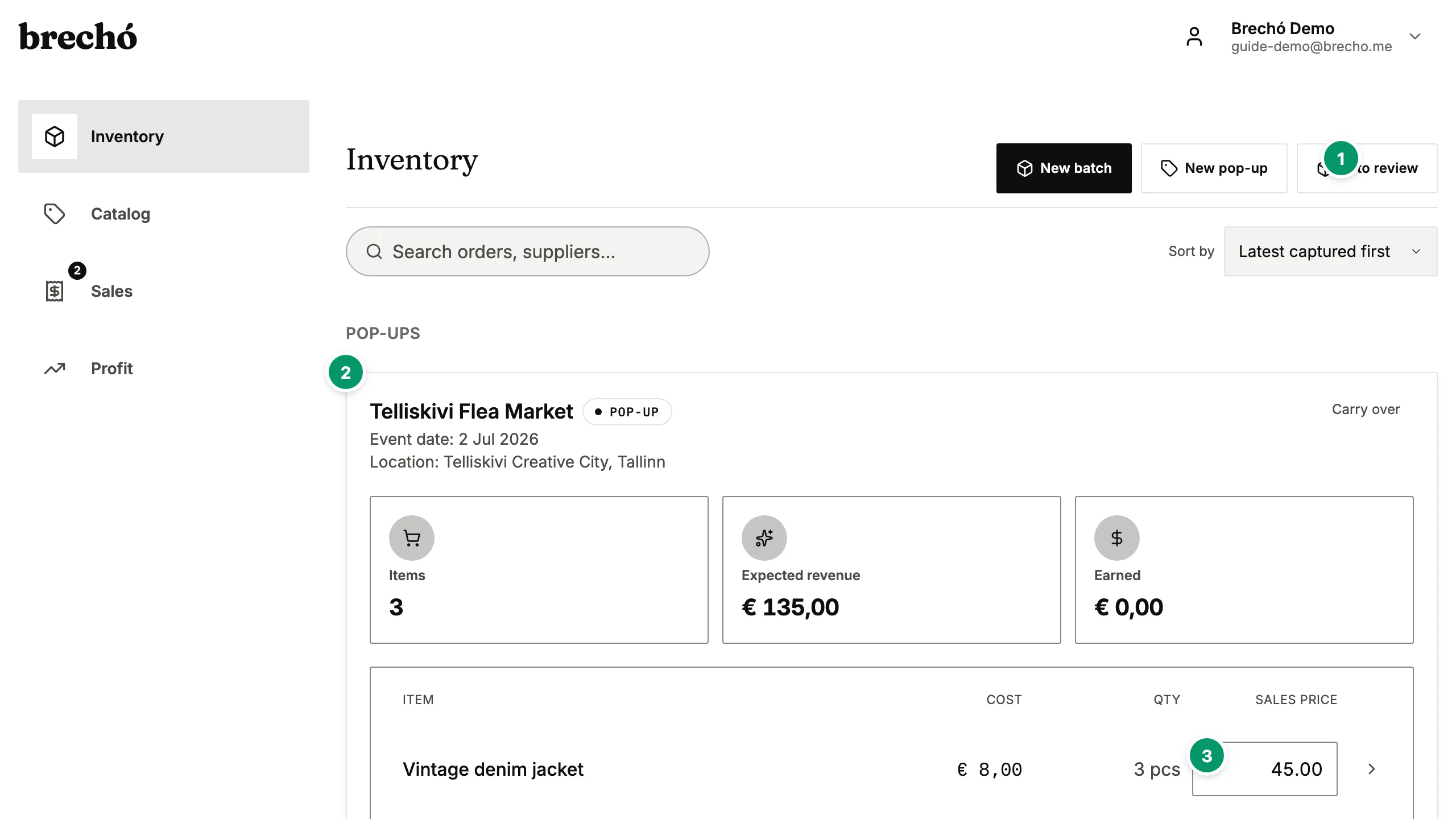
Your inventory is the heart of your shop. See every item, its status, cost, and sale price — all in one place.
Overview of your stock
The inventory page shows all your items grouped by order. Each item displays its status (in stock, published, sold), cost price, and sale price.
1Overview of your stock
2Search and filter
3Batch operations
Search and filter
Use the search bar to find items by name or SKU. Filter by status to see only in-stock, published, or sold items.
Batch operations
Type a sales price straight into any row of an order's items table — it saves automatically and prices every unsold piece in that batch at once. When everything has a price, tap List all on the order card to publish every priced piece in one go.
Pro tip:Yes — tap any item to edit its name, description, photos, price, and status. You can also use AI to generate product descriptions.
Frequently Asked Questions
What do the status colors mean?
Green means in stock and ready to sell. Blue means published on the marketplace. Gray means sold. Red means defective or returned.
Can I edit item details after import?
Yes — tap any item to edit its name, description, photos, price, and status. You can also use AI to generate product descriptions.
Can I track which items came from the same supplier order?
Yes. Inventory items are grouped by purchase order, so you always see which pieces came from the same batch. Each order shows the supplier, date, total cost, and every individual item — with its own cost, status, and profit calculated against its share of the landed cost.
How do I handle returned or defective items?
Open any item from your inventory list and set its status to defective or returned. Defective items stay visible for cost tracking but are excluded from available-to-sell counts. If a returned item is resellable, reset the status to in-stock and it becomes available again immediately. Profit is calculated against the actual sale outcome, so returns and defects don't inflate your margin figures.
How is shipping cost split across items in the same purchase order?
Shipping is allocated proportionally based on each item's cost relative to the order total. For example, if an order has items totaling €100 and shipping costs €10, an item that cost €30 carries €3 of shipping in its landed cost. This allocation happens automatically when you save the order and recalculates if you adjust item prices or quantities before confirming.
Can I set selling prices for multiple secondhand items at once?
Yes. On the inventory page, every order row has a sales-price box — type a price and it applies to every unsold piece in that batch, saving automatically with a confirmation. If pieces in a batch carry different prices the box shows 'Mixed' with the range underneath, and typing a number levels them to one price; pieces already sold always keep the price they actually sold at. Where a buyer-protection fee applies to your account, a 'Buyer pays' line under the box shows the fee-inclusive total live while you type. When everything is priced, tap List all to publish every priced piece at once — unpriced pieces are skipped, never listed at €0. Once pieces are listed, the order card's expected-profit figure reflects the new prices immediately. Repricing a listed piece also updates its public marketplace listing, on every screen where you can set a price. A listing you gave its own, different price when publishing keeps that price.
Can I track consignment items separately from stock I purchased outright?
Yes. Turn on concierge mode in Settings and consignment gets its own flow. Add each owner once and set the share you keep — a single piece can carry a different rate if that is what you agreed for it. Take their things in as a drop-off, which is an ordinary batch capture titled by their name, and print them a receipt before they leave. When a piece sells, at the counter or on the marketplace, the owner's share is worked out and recorded against them straight away, at the rate that applied to that piece. The Inventory page still lists each drop-off as its own card, so one owner's pieces never blend into an import shipment. Paying your owners stays yours to do: you hand over the money however you already do, record it, and both of you have a receipt. Rack rent, if you charge it, appears on their statement as its own dated line.
How do I track stock across multiple purchase orders from the same supplier?
All orders are attributed to a supplier when captured. Filter your inventory by supplier name to see every purchase order from that source — all individual items, their current status, and profit to date. This lets you evaluate which suppliers give the best margins after landed cost and helps you decide whether to reorder from that source. Filtering by supplier also makes it easier to batch-price new arrivals from the same wholesaler and compare sell-through rates across different sourcing channels.
How do I price secondhand items so every sale is profitable after shipping and fees?
Start from the landed cost figure shown per item in preloved.supply — this already includes purchase price, allocated shipping, and import fees. Apply your target margin percentage on top: if an item's landed cost is €8 and you want at least 50% margin, set the sale price at €16 or higher. For marketplace sales, factor in the platform fee percentage before calculating margin — preloved.supply shows this breakdown per item. Use the Analyze page to review actual net margins across past sales and refine your pricing formula. Items with low margins can be repriced or bundled. Most resellers find 40–60% gross margin keeps the business healthy after payment fees and occasional returns.
How do I handle items I bought as a lot and want to track individually?
When you capture a lot purchase — for example, 20 pieces at a single lot price — AI receipt parsing creates individual items for each piece. If the invoice shows only a lot total, enter the combined price during review and set the quantity to match the piece count. preloved.supply divides the cost evenly across items; you can adjust individual item costs after confirming if pieces differ significantly in value. Each piece then tracks independently from intake to sale — status, profit, and price updates apply to the individual item, not the lot. This is the standard workflow for multi-piece supplier purchases, consignment lots, and estate sale acquisitions.
I photographed one item but I have several of the same piece — do I shoot it again?
No. Photographing a piece stocks one unit, because at the photo stage you are shooting, not counting. Open the item and set 'How many do you have?' — the units table below follows immediately: each extra unit appears with its own short code, priced the same as the ones already there, ready to list or sell separately. Lower the number and the newest spare units are retired, freeing their codes for reuse. Units you have already sold, listed, reserved, or marked defective are never removed this way — preloved.supply refuses and asks you to remove those from the table yourself, so a real sale can never be erased by a typo in a quantity box. This is the fastest way to stock a pop-up rail of identical pieces: shoot once, say five.
Can I reserve an item for a buyer who hasn't paid yet?
Yes. Open an item in your inventory and set its status to Reserved — this removes it from active marketplace listings and prevents it from appearing in new payment links while you hold it for the buyer. Reserved items stay in your inventory count and are fully visible in your stock list. If the buyer pays, update the item to Sold and link the payment. If the sale falls through, change the status back to In Stock and the item returns to available listings automatically. Reserve is designed for the gap between a buyer saying 'I'll take it' and payment clearing — common when you share payment links via WhatsApp and agree on terms before the buyer pays.
How do I see which inventory items have been unsold the longest and may need a price markdown?
Go to Inventory, filter by In Stock status, and sort by 'Oldest captured first' — items are ranked from longest unsold at the top. Items with the longest time in stock and a price above the current market rate are the best candidates for a markdown. From the same view you can tap an item to edit its price directly. Most sellers review slow-moving stock weekly: anything unsold for more than 45 days gets a 10–20% price cut, and anything past 90 days is assessed for bundle pricing, giveaway, or donation removal from inventory.
How do I do a physical stock count and reconcile it with my preloved.supply inventory records?
Go to Inventory and filter by In Stock status — that list is your checklist. Walk your physical stock with the list open on your phone and check each piece off against the item name, short code, and status shown. Items on the list you cannot locate physically may have been sold offline without being recorded, mislaid, or lost. For each discrepancy, update preloved.supply directly from the item: mark physically missing items as sold at cost with a note to preserve the cost record and flag the loss in your profit analytics, and capture any physical items not yet in preloved.supply as new purchases. Running a stock count monthly prevents small discrepancies from building up and ensures your Analyze data reflects actual inventory rather than recorded-only stock. Many secondhand sellers do a count at the end of each market season — after a major fair or at the start of a new buying cycle — as a natural checkpoint.
How do I mark an item as defective when it arrives damaged from the supplier, and how does preloved.supply record the loss?
Open the item in inventory and set its status to Defective. This removes the item from active listings and payment links immediately — it will not appear in the marketplace or sell page. The original landed cost stays recorded against the item, so your Analyze dashboard captures the cost as an unrealised loss when you filter defective items. For items damaged on arrival, note the defect in the item description field and add the damage to your supplier return record if the supplier accepts claims. If the item can be repaired and sold at a lower price, change the status back to In Stock, update the sale price to reflect the defect discount, and note the damage in the listing description to set buyer expectations accurately. Items marked as defective are never deleted — they remain in your inventory history so the cost is always traceable.
Ready to try it?
Start managing your secondhand shop today. No credit card required.
Essential cookies keep preloved.supply running. With your permission we would also like analytics and advertising cookies, which help us see what is useful and reach more sellers.
Privacy policy