Settings & Integrations
Configure your account, connect payment providers, and set up shipping — everything you need to get selling.
Account settings
Update your business name, email, and currency. Set your PIX key for receiving payouts.
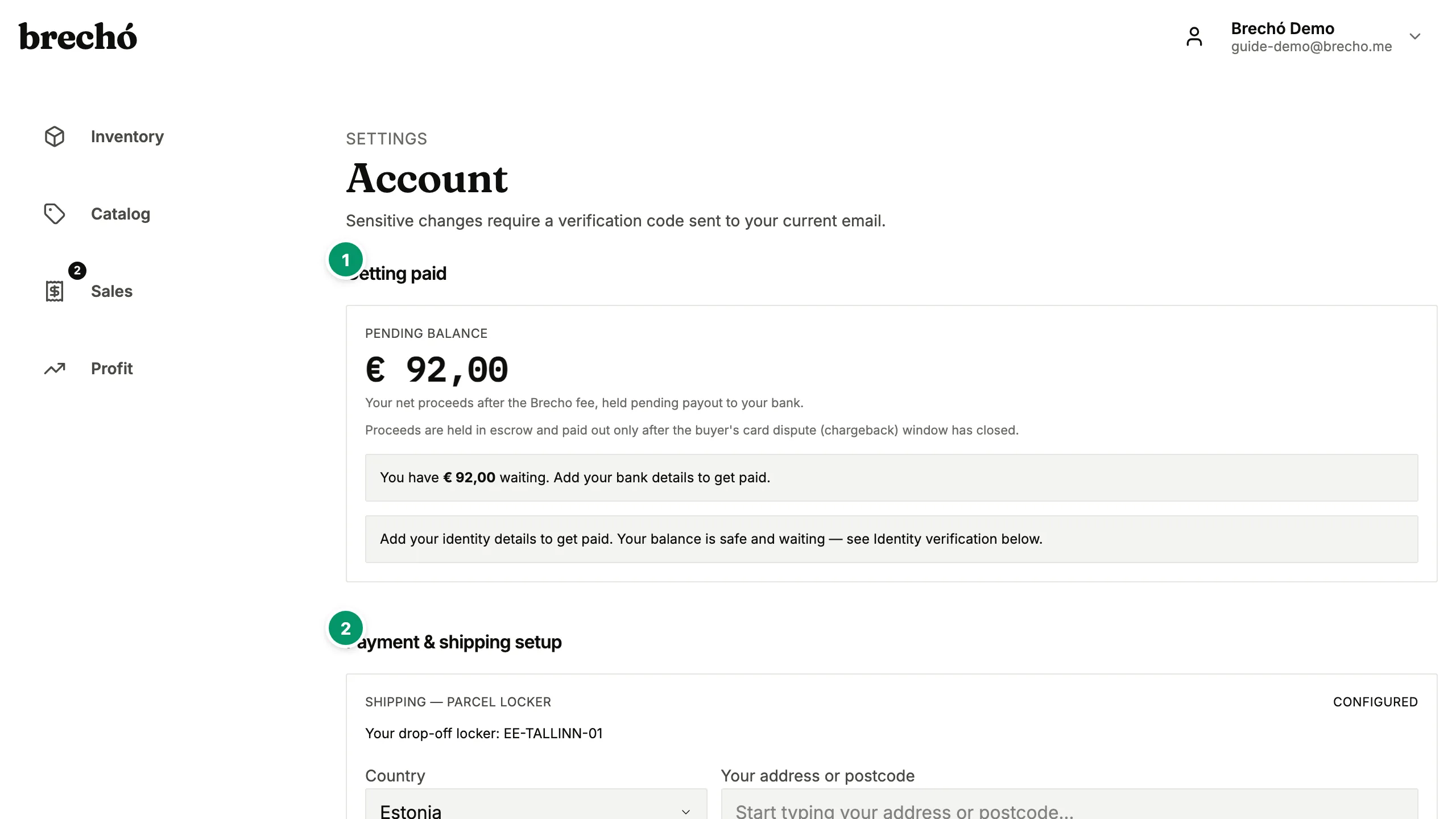
- 1 Account settings
- 2 Payment integrations
Payment integrations
Connect Stripe for card payments, MercadoPago for POS terminals, and set up Cielo terminals. Each integration has a guided setup.
Shipping integration
Connect Melhor Envio to generate shipping labels, compare carrier rates, and select dropoff locations.
Frequently Asked Questions
Do I need to set up all payment providers?
No — just connect the ones you plan to use. Stripe is recommended for card payments, and PIX is built-in for Brazilian sellers.
How do I change my plan?
Your current plan and billing details are shown at the top of the Settings page. Tap 'Manage billing' to upgrade or change your subscription.
Can I change payment provider settings after my secondhand shop is live?
Yes. Connect, disconnect, or switch payment integrations anytime from Settings without affecting existing transactions or inventory data. If you disconnect Stripe, card payments pause — but PIX links and POS terminals continue independently. Each integration has its own on/off toggle with no data loss.
How do I configure my PIX key to receive payments?
Go to Settings → Payments and enter your PIX key in the PIX section. preloved.supply supports all key types — CPF, CNPJ, registered email address, phone number, and random key (chave aleatória). Once saved, payment links and POS PIX requests route funds directly to your key. You can update your PIX key anytime without affecting active payment links or pending transactions.
How do I connect Melhor Envio for shipping labels?
Go to Settings → Shipping and click Connect Melhor Envio. You'll be redirected to the Melhor Envio authorization page — log in or create a free account, then approve the connection. After authorizing, you're returned to preloved.supply and label generation is active immediately. From any fulfilled order you can compare carrier rates, choose the best option, and generate a label in under a minute.
Can I switch the app interface between English and Portuguese?
Yes. preloved.supply is fully available in English and Brazilian Portuguese. Go to Settings → Account to change the language — the interface, emails, and all system messages switch instantly. Your inventory, purchase history, and profit data are unaffected by the language change. Sellers in Portugal and Europe typically use English; Brazilian sellers use Portuguese. You can switch languages anytime without losing any data or settings.
How do I prepare my preloved.supply account for a pop-up event or weekend market fair?
Before the event: confirm your PIX key is saved in Settings → Payments for instant QR payments, connect your MercadoPago or Cielo terminal if you have one, and move inventory items you plan to bring to Published status so they appear in the Sell page search. At the event: add items to the cart and accept PIX, card, or cash. After the event: sold items are already tracked with profit recorded — use Analyze to review which pieces performed best. Payment links also work well at fairs — send the link via WhatsApp and the buyer pays on their own phone.
How do I connect Stripe to accept card payments from buyers in Europe?
Go to Settings → Payments and click Connect Stripe. You'll be redirected to Stripe's onboarding flow — create a free Stripe account or log in to your existing one, complete the business verification steps, and approve the connection. Once connected, card payments from buyers anywhere in the world are enabled immediately — Visa, Mastercard, and SEPA bank transfers for European buyers. Payouts land in your connected bank account on Stripe's normal schedule (typically two business days). You can disconnect or update your Stripe settings anytime from the Settings page without affecting existing transaction records.
How do I get my account data for tax reporting or accounting software?
For tax season, go to Analyze, set the date range to the full calendar year, and read off total revenue, total cost, and net profit for the period — the item-level view underneath adds purchase date, sale date, cost price, landed cost, sale price, payment method, and net profit per piece. Share those screens with your accountant or use them for VAT returns. Under LGPD and GDPR, you can also request a full export of your account data at any time — contact us at [email protected] and we will send it to you.
Can I use preloved.supply without connecting any payment integration?
Yes. preloved.supply works fully as an inventory and profit tracker without any payment integration connected. Add purchase receipts via AI capture, manage stock, record manual sales, and see profit per item — all without Stripe, MercadoPago, Cielo, or Melhor Envio. When you are ready to accept digital payments, connect the relevant provider in Settings — each integration is optional and independent. Some sellers use preloved.supply purely for receipt parsing and profit analysis while handling payments through their own methods, adding an integration only when their payment volume makes it worthwhile. The free plan includes inventory tracking and manual profit recording with no integrations required.
How do I set up my bank account to receive payouts from marketplace sales?
Connect a bank account through Stripe from Settings → Payments → Connect Stripe. During the Stripe onboarding process you provide your bank account details — IBAN for European sellers, or standard account number and routing code. Stripe verifies the account and sets it as your payout destination. Payouts are processed automatically on Stripe's standard schedule, typically every 2 business days for established accounts. For Brazilian sellers, payouts for PIX and card sales go through the connected bank account configured under Settings → Payments. You can update your bank account details anytime from Settings without interrupting active payment links or pending payouts — your current payout schedule and bank account status are shown in Settings → Billing.
Can I enable or disable individual preloved.supply features independently — for example, use shipping without the marketplace?
Yes. Every integration in preloved.supply is independent — connect Melhor Envio for shipping labels without enabling the marketplace, or activate Stripe for card payments without connecting MercadoPago. In Settings, each integration has its own toggle and configuration section; turning one off does not affect any other. This is intentional for sellers building features as their shop grows — most start with receipt capture and inventory tracking, add payments when ready to sell online, and enable marketplace listing only after their inventory is organised. You can disconnect and reconnect any integration anytime without losing purchase records, profit history, or existing inventory data.
How do I add my CNPJ, CPF, or VAT number so it appears on buyer receipts and invoices?
Go to Settings → Business Profile and enter your tax identification number in the Tax ID field — CNPJ or CPF for Brazil, VAT number for Europe, or the equivalent for your country. preloved.supply prints this number on digital receipts sent to buyers after payment link and marketplace sales. For Brazilian sellers issuing NF-e or NFS-e, the CNPJ entered here is used as the issuer identifier. The Business Profile also stores your legal trading name and registered address, which appear alongside the tax ID on receipts. Buyers who need a formal invoice for expense reporting can find your tax details there. Save the profile and the tax ID appears on all future receipts — past receipts are not retroactively updated.
Can I add a team member or helper to my preloved.supply account without sharing my main password?
Multi-user access is available on higher-tier plans. Go to Settings → Team to invite additional users by email — they create their own preloved.supply login and access the account through their own credentials. You can set their role as view-only (they can browse inventory and see profit but cannot make changes) or editor (they can add items, update statuses, and record sales). Team members see the same inventory and analytics as the account owner; billing and plan changes are restricted to the account owner. This is useful for sellers who have a shop assistant helping at fairs, a partner managing inventory captures, or a family member handling WhatsApp payment links. Each team member's actions are logged against their own profile, so you can see who made changes to the inventory. Remove access anytime from Settings → Team with no effect on the inventory or sales history.
Can I set up push notifications on my phone so I know the moment a payment link is paid without opening the app?
Push notifications are not available today — but you do not need to refresh anything either. With preloved.supply open, the Sell page updates live: the moment a buyer pays a payment link, the paid state appears on screen within seconds, with no reload. For a fair or a busy sales day, keep the Sell page open on your phone or tablet and the paid confirmation is your signal. For marketplace orders you also get email: preloved.supply emails you when a new marketplace sale comes in, when your funds are released, and when a parcel is returning to you, plus a periodic summary digest. Those emails need no setup — they go to your account address. If you want a sound the moment a link is paid, keep the app in the foreground during the sale window; the live update is immediate.
Ready to try it?
Start managing your secondhand shop today. No credit card required.